
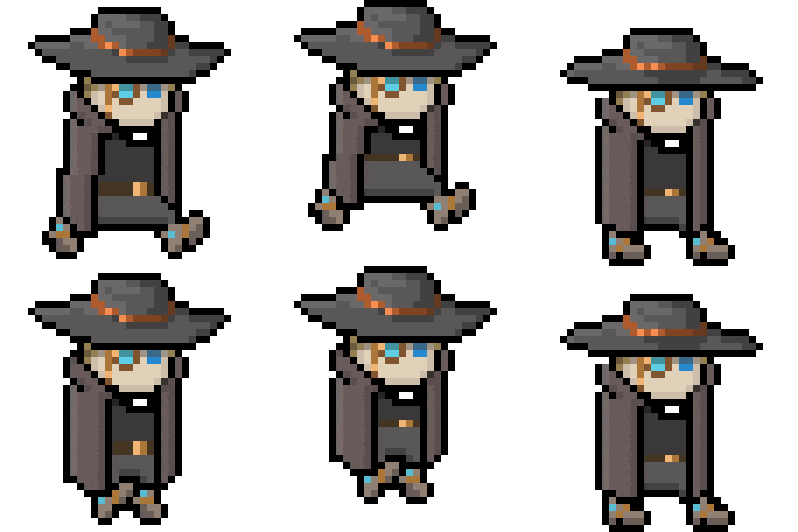
Do your sprites look kinda… robotic? We can make them more lively with a few simple tricks. Let’s talk about dynamic sprite animations with Aseprite. Welcome to another tutorial by ACP_Nate. Let’s take a look at theses examples below of Warren (Warren is the main character from my game/comic Truth: Save the Miners!).
👉 How to Make Dynamic Sprite Animations With Aseprite
Stretch and Squish – Dynamic Sprite Animations With Aseprite

Let’s start with The secret to dynamic animations is changing a character’s proportion/scale frame-to-frame. In frame one, a characters torso might be 3/4 the size as it is in the next frame. Artist exagurate to emphasize movement and the organic, flexible nature of the character.
Skip Some Frames
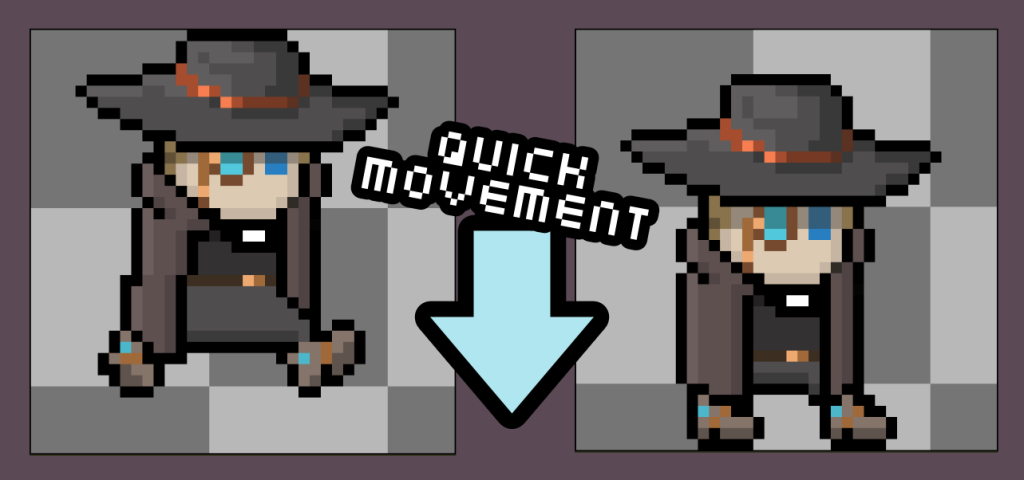
In addition, another trick to give your animations a more dynamic feel is to remove a frame. Because, if you want a movement to seem fast, like a fall or a sword swing, skipping frames will communicate quicker movement.
Copy & Paste… It’s a Magical Thing!

Previously, As a traditional artist, I remember drawing every… single… frame. Well, that is great for exceptional detail and developing carpal tunnel, but for video game sprites, especially simplistic pixel art, copy and paste is a MUCH more advantageous strategy.
So, to achieve stretch and squish, use ‘command+C’ to copy frames and ‘command + V’ to paste them in the next frame. Then, use the marquee tool in Aseprite to select an are and them move it a few pixels.
Now, use hotkeys ‘I’ to select the neighboring pixel’s color, then ‘B’ to activate the brush and drop in a matching pixel. And, in a matter of minutes, you have a new frame with some decent stretch and squish – you did it!
Now you know how to make dynamic sprite animations with Aseprite!
I’m not saying you will have this done in under 10 minutes, but these tools will certainly speed up your process as well as make you sprites look more alive. To be completely honest, this animation from concept to final sprite sheet took me a few days. My next will likely go faster, now that I have this template. And, that is why I am sharing this information with you.
I hope you found this tutorial helpful. Stay creative, my friends!